Welcome
Your Personal Finance Portal (PFP) gives you one secure place to view your communications and documents, any time, on any mobile or web device. PFP lets you see the information we hold for you, and keep it up to date yourself.
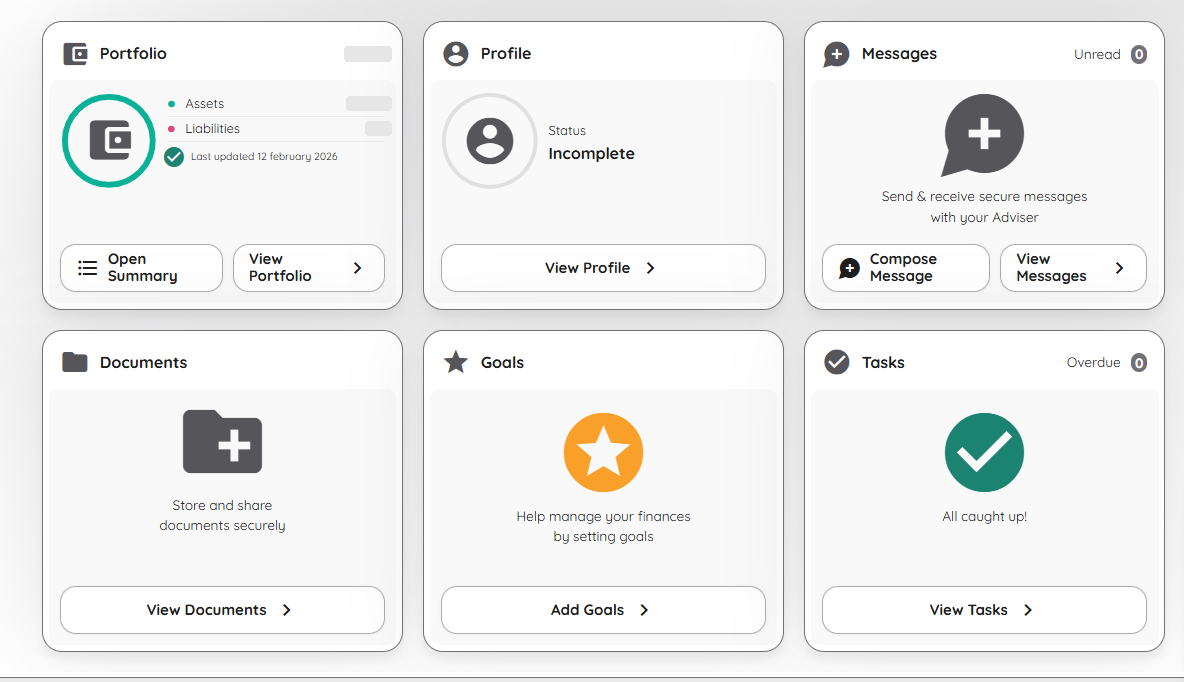
Your Dashboard after logging in. Figures and photos in this guide's screenshots are illustrative placeholders, not real client data.
What is PFP?
How do I register for PFP?
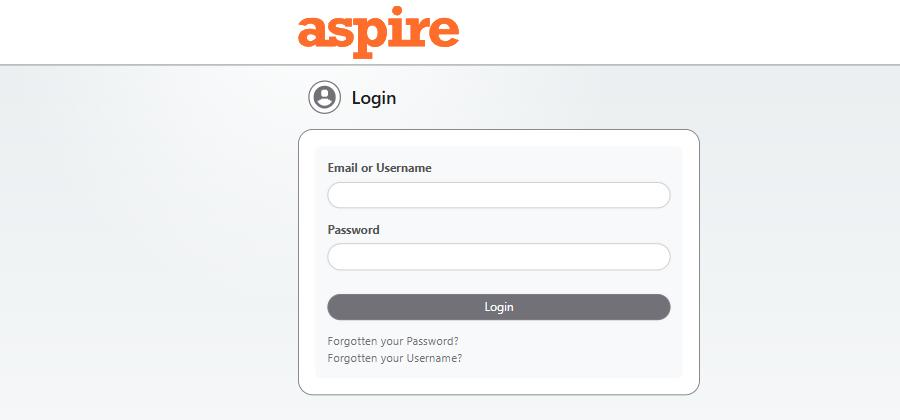
What does the login screen look like?
What is the Personal Finance Portal?
PFP is a fully encrypted, secure portal we use to communicate with you via secure messaging, share documents (and you can share them with us too), and keep your personal details up to date – all in one place, available any time.
Your Dashboard
The Dashboard is the first page you see after logging in. It's made up of six widgets, each a shortcut into one part of PFP:
Your Portfolio
What does the Portfolio widget show?
Your total assets and any liabilities, as a single figure, along with the date it was last updated. Select "Open Summary" for the fuller breakdown.
How current is the valuation?
Valuations may not reflect very recent movement in unit prices, holdings, or the impact of withdrawals or contributions – check with your planner before acting on a figure shown here.
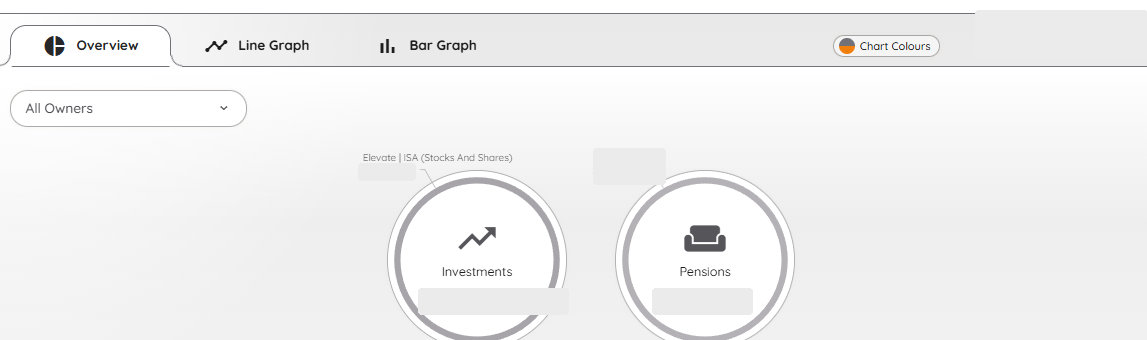
The Overview tab, reached via "Open Summary". Figures shown are illustrative placeholders, not real client data.
What does the Overview tab show?
A visual split of your assets by type (for example Investments and Pensions), with the platform or provider named for each. The Line Graph and Bar Graph tabs show the same figures over time, and let you merge different account categories together and filter by account owner.
Your Profile
Your Profile is where you let us know the information we need to help you make the most of your finances. The more up to date it is, the better we can advise you – everything you provide is stored securely and used only for the purpose of advice. It's split into three sections, each with its own progress tracker; complete one and the review page for the next becomes available.
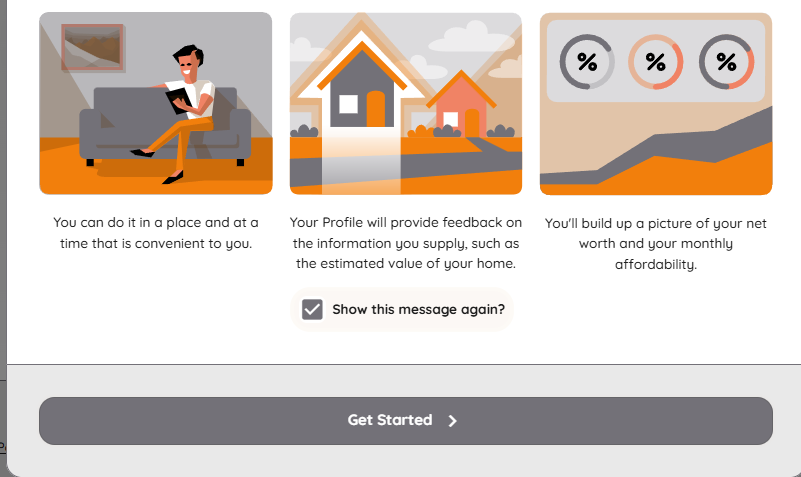
The introduction shown the first time you open Your Profile.
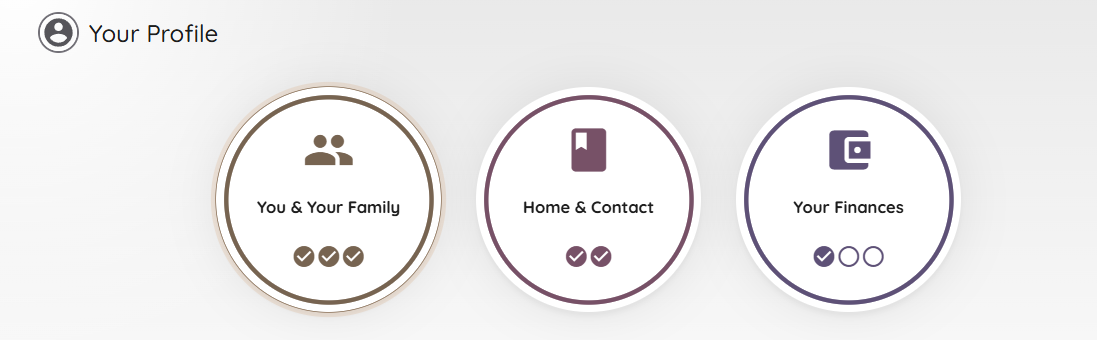
Each section shows a live completion count (e.g. 3/3) so you can see at a glance what's outstanding.
You & Your Family
Your personal details and family circumstances relevant to your plan.
Home & Contact
Your address and contact details, kept up to date so we can always reach you.
Your Finances
Employment details, and any plan or policy numbers you'd like to add.
Documents
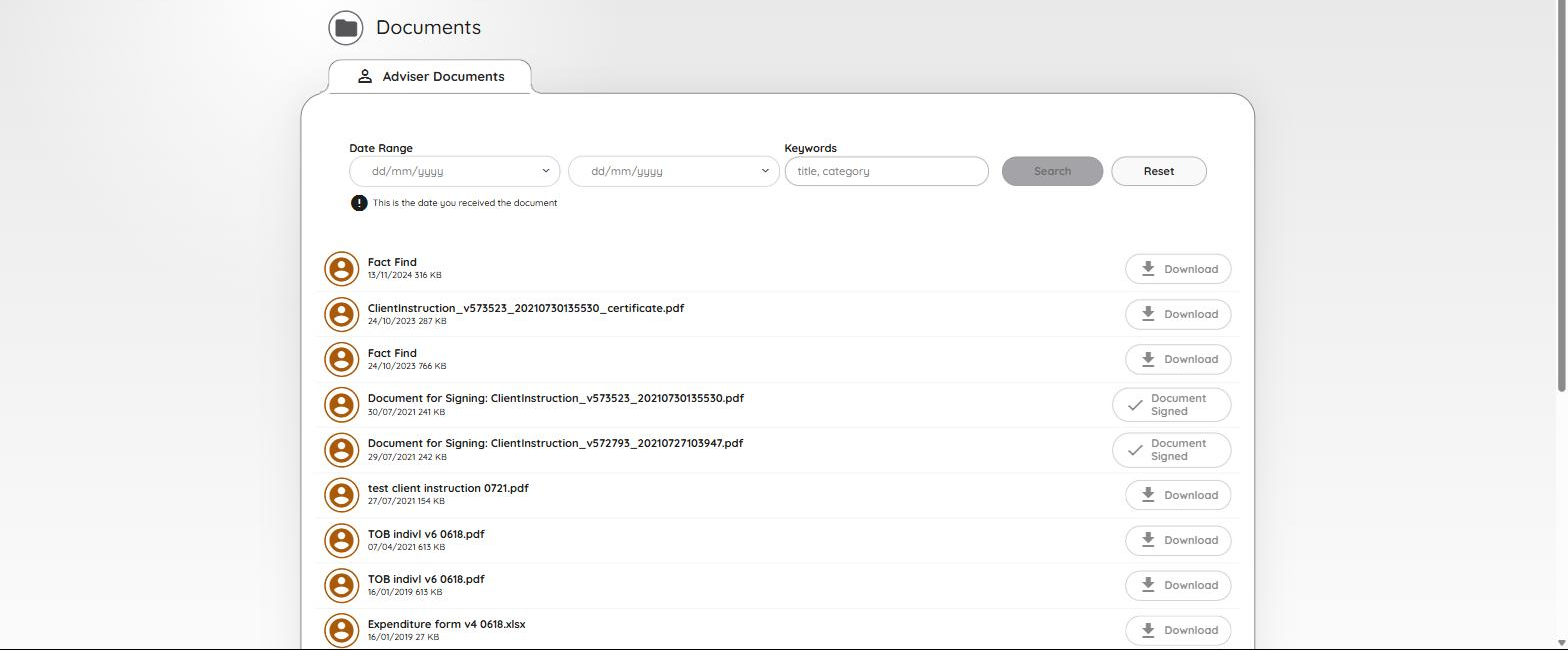
A single online document vault for everything financial and personal, searchable by date range or keyword.
How do I find a document?
Use the date range or keyword search at the top of the Documents page to narrow the list, then select Download against any document.
What does "Document Signed" mean?
Some documents are sent for electronic signature rather than simple download. Once a document has been signed, it's marked "Document Signed" instead of showing a Download button.
Are there any document restrictions?
There's a total storage limit of 200MB across your document vault.
How do I upload or share a document with my planner?
Select "Browse" to choose a file from your computer, give it a Title, and tick "Share this document with your Adviser?" if you'd like your planner to see it, then select "Upload Document".

Secure Messaging
How do I send a secure message?
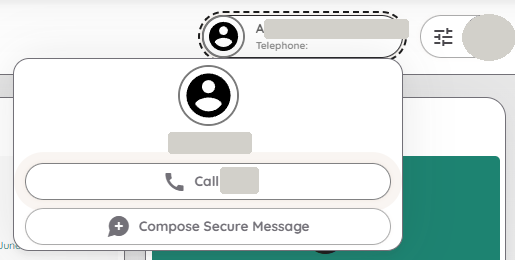
Secure messaging in PFP means you can message us with the confidence that everything is completely encrypted – accessible any time, across desktop, laptop or mobile. Select your planner's name at the top of the screen, then choose "Compose Secure Message". Messages are organised into Inbox, Sent and Draft sections.
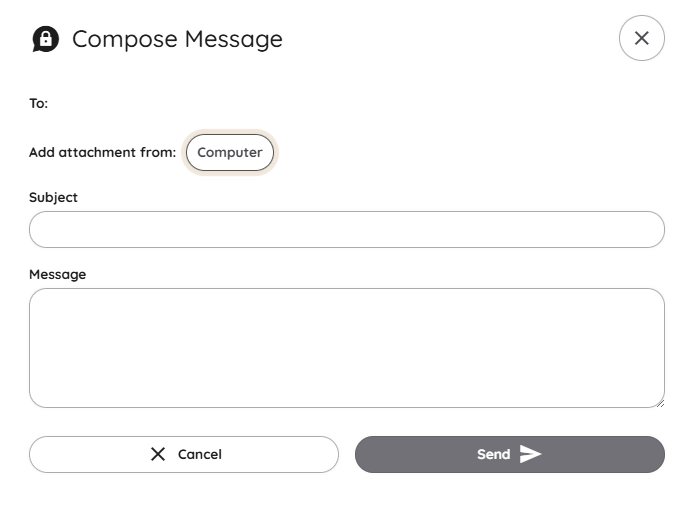
You can attach a file straight from your computer when composing a message.
How do I save an attachment to my Documents?
Attachments sent or received in a message can be saved straight into your document vault.
Can I delete a secure message?
No – a permanent record of secure messages is kept for compliance reasons.
Tasks
The Tasks list shows each task's type, subject, start and due date, status, and any notes.

What kind of things appear as tasks?
An adviser may choose to share a view of a task with you, which can serve as a reminder for an Annual Suitability Review or a one-off job. You can see its status, but not edit it.
Can I mark a task as done myself?
No – tasks are set by your adviser, who also marks them as complete.
Goals
Goals let you set a target for your finances – for example building an emergency fund, increasing pension savings, or saving for a holiday – and track progress towards it.
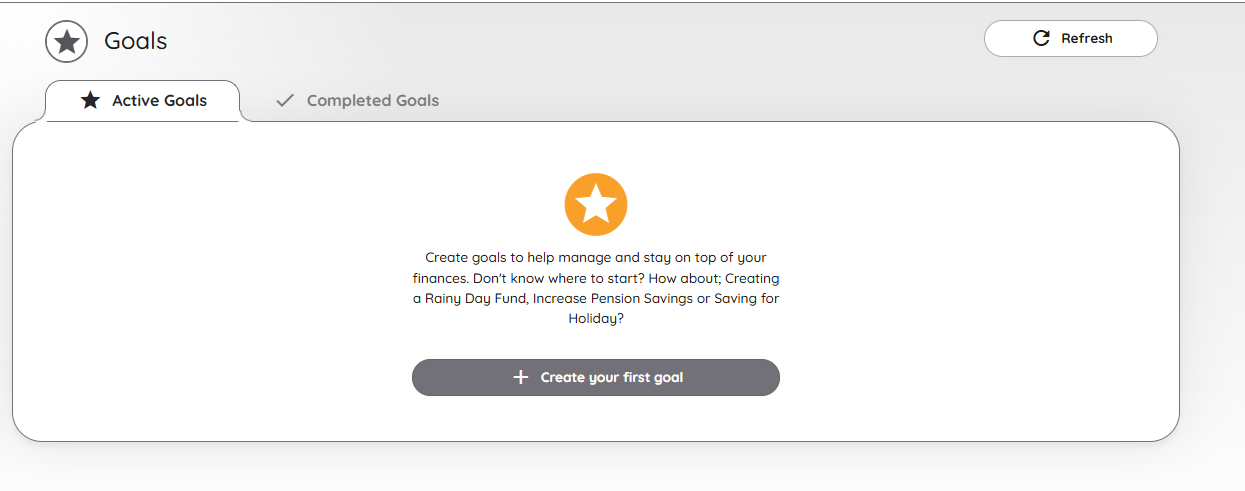
The Goals screen before any goals have been added.
How do I create a goal?
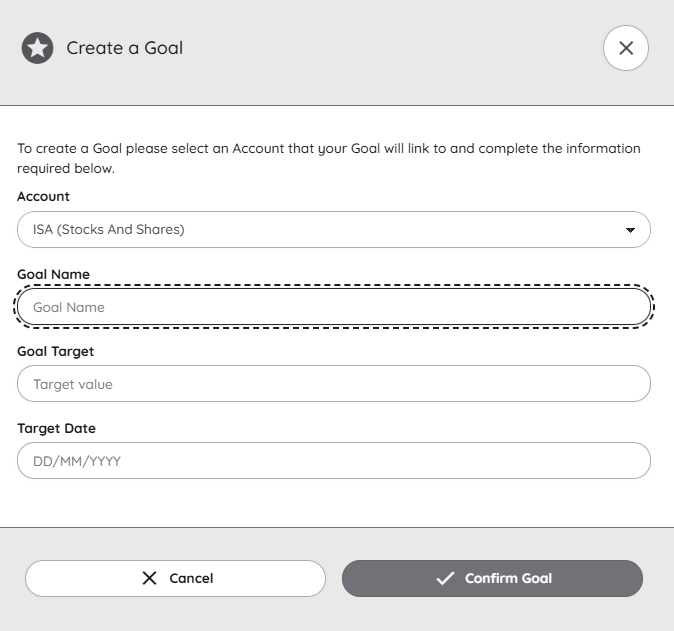
Select "Create your first goal" (or "Add Goals" from the Dashboard widget), choose the account it should link to, then give it a name, a target value and a target date.
What does an active goal look like?
Each goal shows its linked account, target date, and progress towards the target, with edit and delete icons alongside it.

Figures shown are illustrative placeholders, not real client data.
What happens once a goal is complete?
You decide yourself when a goal is complete; it then moves from the "Active Goals" tab to "Completed Goals" and can't be reopened.
User accounts
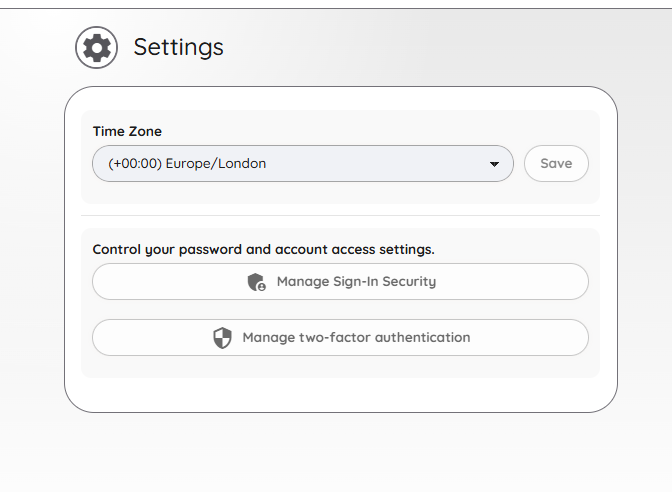
Account and security controls live on the Settings page, reached from the sliders icon in the top right of any screen.
What is 2FA?
Two-factor authentication – an extra security step beyond your password, so your account stays protected even if your password were ever compromised.
How do I set up and use 2FA?
From Settings, select "Manage two-factor authentication" and follow the on-screen steps – you'll need an authenticator app on your phone, such as Microsoft Authenticator or Google Authenticator.
How secure is my data?
Everything in PFP is completely encrypted, so you can use the built-in messaging service and document vault safely and securely – far more secure than email or paper copies in a filing cabinet.
How do I change my username or password?
From Settings, select "Manage Sign-In Security", then "Change Password" – you'll be asked for your current password, then your new one.
Can I change my time zone?
Yes – the Settings page has a Time Zone selector alongside the security options.